Expert Slide and Photo Scanning Since 2002
4000 ppi High Resolution Slide Scanning
Affordable Scanning
www.old-photo.com
www.old-photo.com
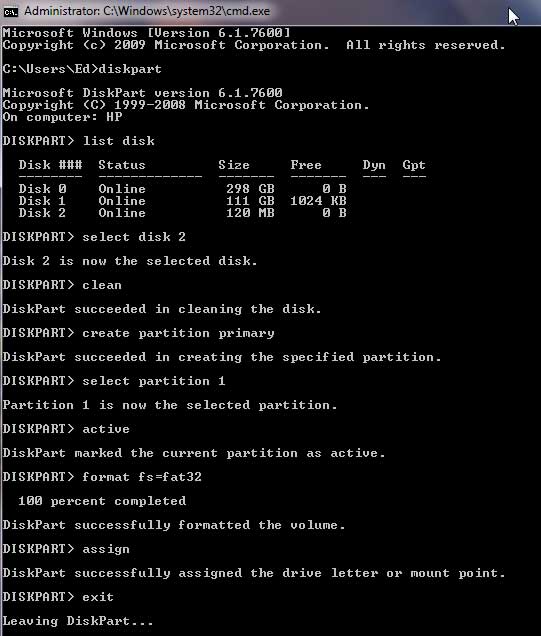
Create A Bootable Thumb Drive With DiskPart
Insert your USB Thumbdrive into your Windows 7 computer. (Note that you may not be able to do this with a Windows XP computer.s)
Start a command prompt by going to Start button / All Programs / Accessories / Command Prompt
Or, Start, Run, type in cmd
Then, at the command prompt, type:
diskpart


list disk
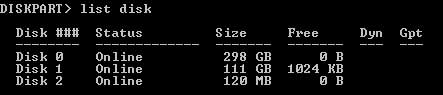
- This lists the disks available in your system. Check whether the Thumb Drive disk to make bootable has the proper size and corresponds with that of your USB Thumb drive
.
select disk 2 (2 has only MB and not GB)
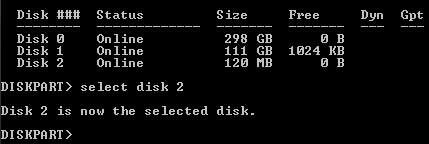
- This selects the disk number of your USB key. Change accordingly to reflect your USB thumb drive if you have multiple drives on your Windows 7 system.
clean

- This will delete everything on your USB Thumb Drive, so before you do this, make sure you are doing this to your USB key and not your hard drive! This is dangerous.
create partition primary

- This creates a primary partition in your USB key
select partiion 1

- This selects the newly created partition
active

- This makes the partition active
format fs=fat32
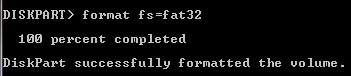
-This formats the selected partition with FAT32 filesystem. (We have had some thumbdrives that still were not bootable with a fat32 file system.
In that case we jused "format fs=ntfs" and that worked for us. So this is an option.)
assign
- This assigns the USB key to a drive letter

exit
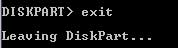
At this point, your USB key will be empty and formatted with the FAT32 or NTFS filesystem. Now, if you have a Bootable CD such as Norton Ghost, or whatever, you should be able to copy the files and folders over to the USB key and it should be bootable.
About Our Company
Affordable Scanning Services LLC
400 Bittersweet Lane
Waupun, WI 53963
Copyright 2023
Everyone needs to fill in and submit an order form online. This includes those who want to personally DROP OFF. There is a lot of information you need to read on the order form pages.
Please click here.
Get in Touch
After Hours, you will get a faster response by using Email. Please click the link above. We answer Email at all hours. Telephone messages are responded to during business hours.