Expert Slide and Photo Scanning Since 2002
4000 ppi High Resolution Slide Scanning
Affordable Scanning
www.old-photo.com
www.old-photo.com
Solving Networking Windows XP
and Windows 7 Computers Problems
Its almost as though Microsoft created this networking problem on purpose to force more people to purchase more copies of the Windows 7 operating system than they intended because MICROSOFT has created this problem of making it so difficult to network Win XP and Win 7 machines. And Microsoft has given little help in solving the problem. I can't tell you how many hours I have struggled with this networking problem because we have 11 computers using different operating systems, following the directions from Microsoft, with negative results.
 So, once you have followed all of Microsoft's directions on how to network these two operating systems, there is still more to do. (See bottom of page for what you have to do to get to this point. My god! and they brag about how easy it is to network the Windows 7 machines. Yes, it is, but only ALL Windows 7 machines. If you have the two operating systems to network, you are in trouble.)
I had no big problem getting my Windows 7 machines to see and be able to access my Windows XP machines. The problem was with being able to see (which could be done) and access (which couldn't be done) the Windows XP machines.
In order to get your XP machines to see the shared folders of a win7 machine you need to add the Guest account to the security tab
- Go to the Windows 7 machine
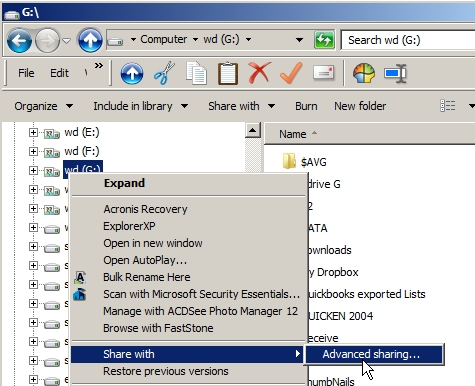
- Right click on folder/drive to Share
- Select "Share With" and "Advanced Sharing"
- Select the "Security" tab
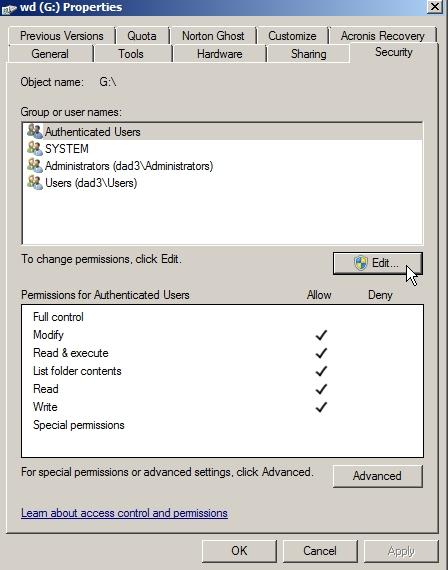
- Click "Edit"
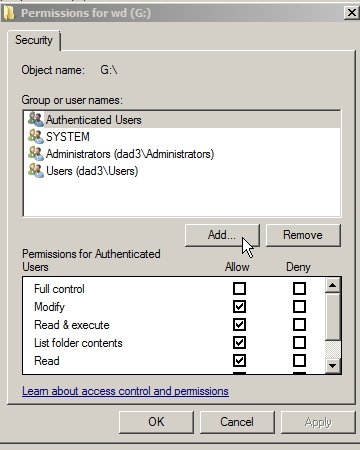
- Click "Add"
- Click "Advanced"
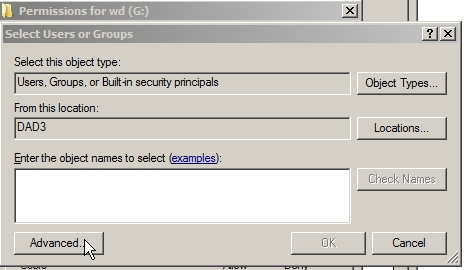
- Click "Find Now"
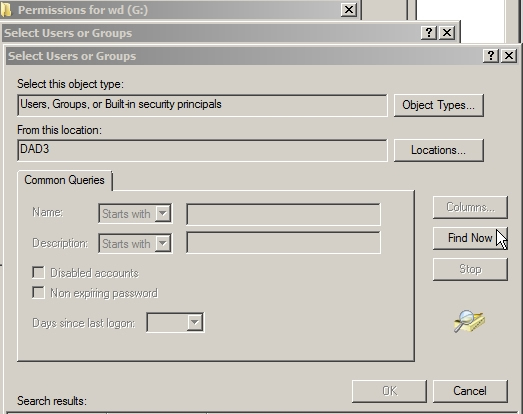
- At the bottom of the open window scroll down till you find GUEST then select "OK"
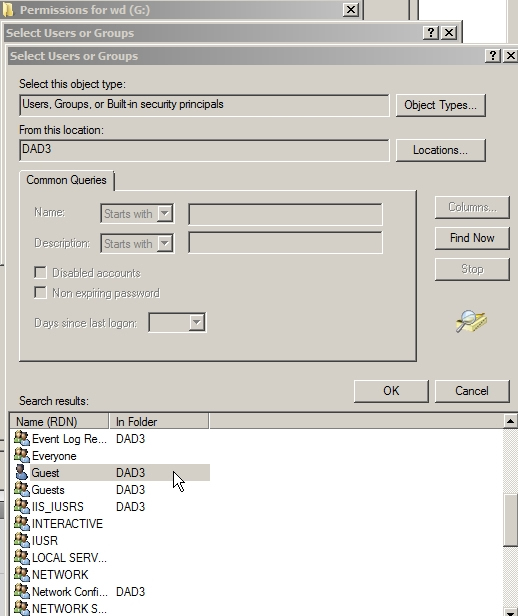
- and again "OK"
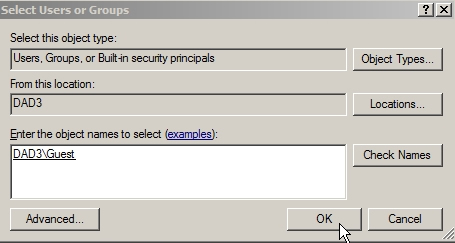
- You should now be back at the Permissions for Guest.
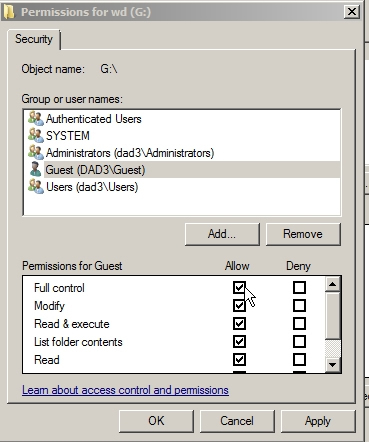
- Scroll down to where it says guest and go to the tick box on the right, under the "Allow" column and select the full control tick box
- Click "apply" and "OK" twice and you should now be able to browse the shared folder or drive on your Windows 7 machine from the Windows XP machine
-
Now, if you have not struggled with Microsoft's instructions to network Windows 7 and Windows XP machines, before this, here is how you can get to the point where the above instructions will apply.
Go to your Network and Sharing Center
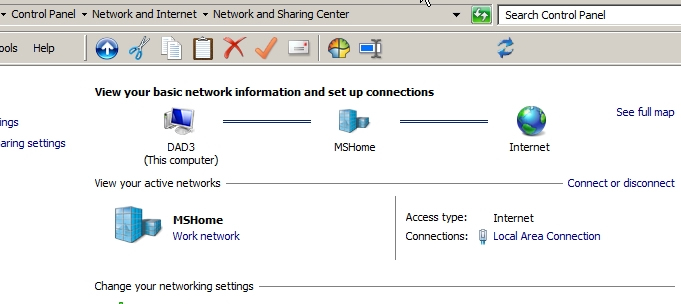
If you have XP machines on your network, you must change the setting for your active network from "Home" to "Work".
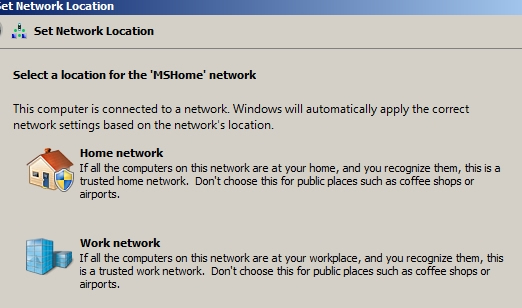
Then there are specific settings in your Advance Sharing Settings that you must make.
Click on the "Change advanced sharing settings".
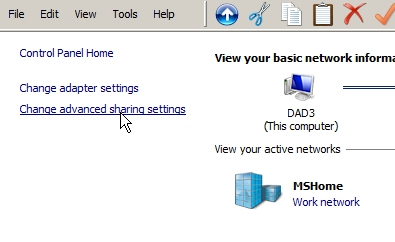
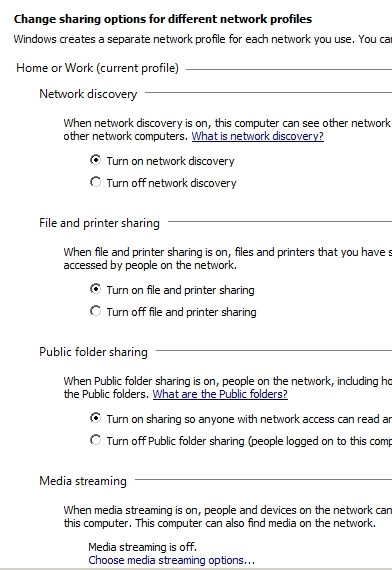
- Change your sharing options for different network profiles:
- Turn on Network Discovery.
- Turn on file and printer sharing.
- Turn on sharing so anyone with network access can read and write.
- Media Streaming? I don't know. Don't use it yet. Just leaving it off.
- Enable file sharing for devices that use 40 or 56 bit encryption.
- Turn off password protected sharing.
- Allow Windows to manage homegroup connections.
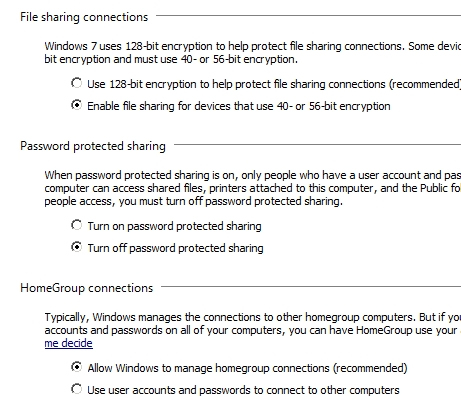
Public Settings: This is optional according to your needs.
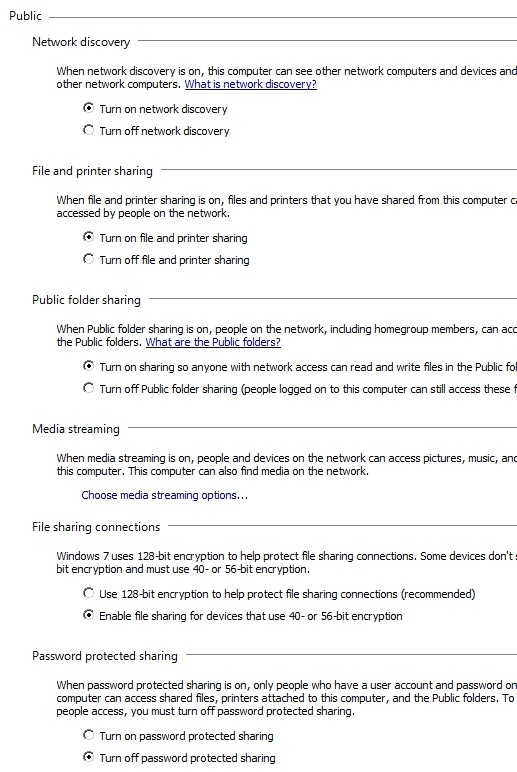
- Turn on network discovery.
- Turn on file and printer sharing.
- Turn on sharing so anyone with network access can read and write files in public folders.
- Almost towards the bottom, there should be a "File Sharing Connections" section, which is probably defaulted to the 128-bit encryption. Change it to the 40 or 56 bit encryption and your XP machine is supposed to show up.
- Turn off password protected sharing
About Our Company
Affordable Scanning Services LLC
400 Bittersweet Lane
Waupun, WI 53963
Copyright 2023
Everyone needs to fill in and submit an order form online. This includes those who want to personally DROP OFF. There is a lot of information you need to read on the order form pages.
Please click here.
Get in Touch
After Hours, you will get a faster response by using Email. Please click the link above. We answer Email at all hours. Telephone messages are responded to during business hours.