Expert Slide and Photo Scanning Since 2002
4000 ppi High Resolution Slide Scanning
Affordable Scanning
www.old-photo.com
www.old-photo.com
Instructions for Setting Up Remote Assistance On Two Computers
Remote Assistance, Receiving
Here is how to Receive Remote Assistance over the
Internet from someone you trust.
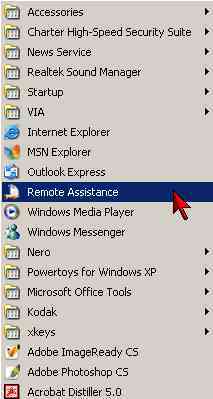
The
first step would be to go to the Start Button, and under Programs,
select Remote Assistance.
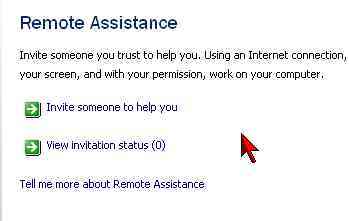
Then,
select “Invite someone to help you.”
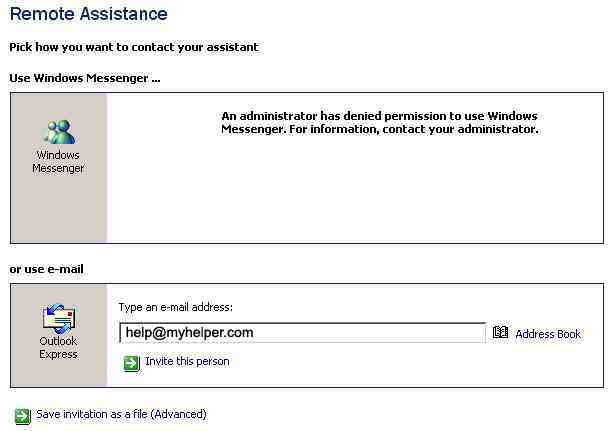
Now,
put the person’s email address in.
Set
the time limit that the person could request to work on your
computer. (You can always disconnect the other person so the time
really shouldn’t be a factor. You should give the person enough time
to fix your problem.)
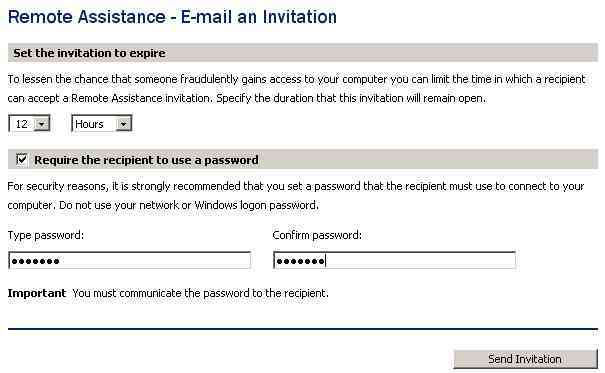
You will have to communicate the password to the person you are
giving access to your computer in some other way than using Remote
Assistance. Send an email or call them by telephone. Remote
assistance will not reveal the password in the email that it sends.
Hit the Send Invitation button.
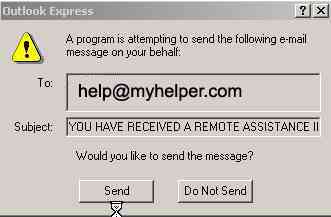
You
may get a message from Outlook Express or whatever email program you
are using asking if you want to allow the message to be sent.
Select “Send.”
Depending on your Virus protection or your firewall, you may be
prompted a couple of times about whether to allow a connection to
the internet or whatever. Just allow it.
Once
the person received your message and tries to connect to your
computer, you will still be allowed to decide if you want to go
through with the remote assistance.
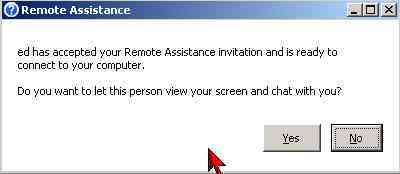
Select “Yes.”
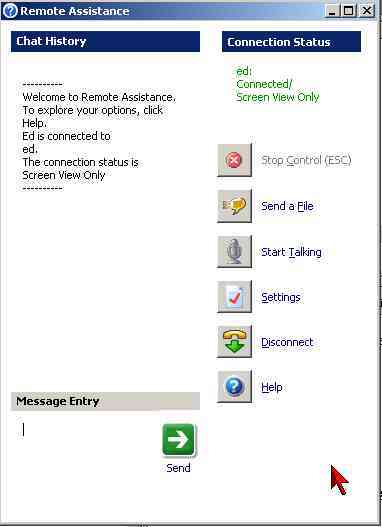
Once
the two computers are connected, you both can communicate by typing
into the “Message Entry” area and then clicking on ”Send.”
The
person you asked to help you with remote assistance will most likely
want to take control of your computer from their computer.
Select yes to allow.
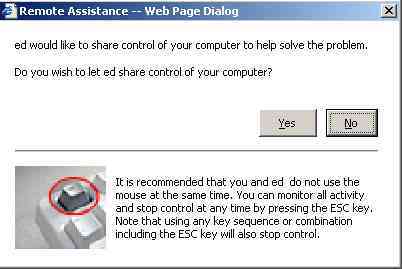
Remote Assistance, Giving
You will receive an email request for help.
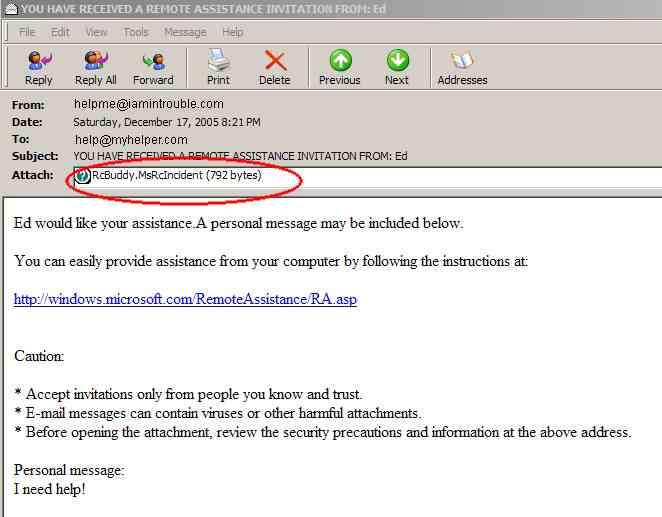
Double click on the attachment to activate the connection.
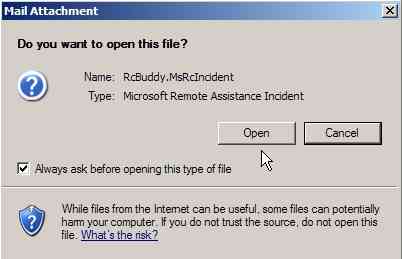
You
may get a prompt from your email program asking if you want to open
the file. Do it.
Select
“Scale To Window” to be able to see the whole remote desktop.
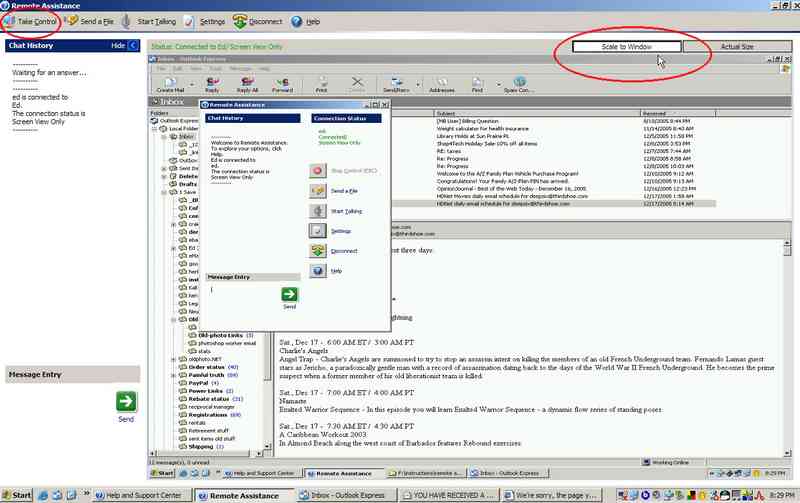
Hit the “Take Control” button in the upper left corner of the window
to request full control from the other computer.
About Our Company
Affordable Scanning Services LLC
400 Bittersweet Lane
Waupun, WI 53963
Copyright 2023
Everyone needs to fill in and submit an order form online. This includes those who want to personally DROP OFF. There is a lot of information you need to read on the order form pages.
Please click here.
Get in Touch
After Hours, you will get a faster response by using Email. Please click the link above. We answer Email at all hours. Telephone messages are responded to during business hours.